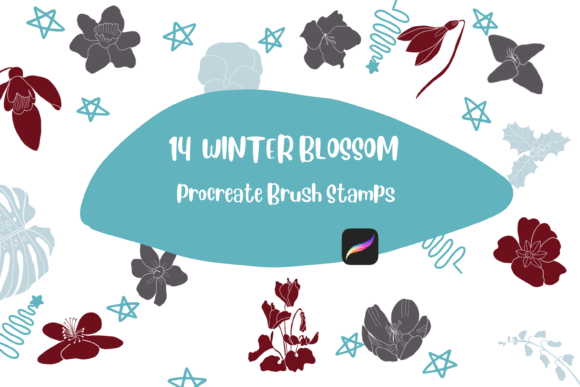
Integrating Procreate Brush Stamp Winter Blossom into Your Digital Design Workflow
In the rapidly evolving landscape of digital illustration and graphic design, efficiency is often just as critical as artistic talent. For professionals, entrepreneurs, and hobbyists alike, the ability to produce high-quality visual assets quickly can define the success of a project. This is where specialized tools like the Procreate Brush Stamp Winter Blossom collection become invaluable. Rather than serving merely as decorative elements, these stamps function as strategic components in a broader creative workflow, allowing users to streamline production while maintaining a hand-drawn aesthetic.
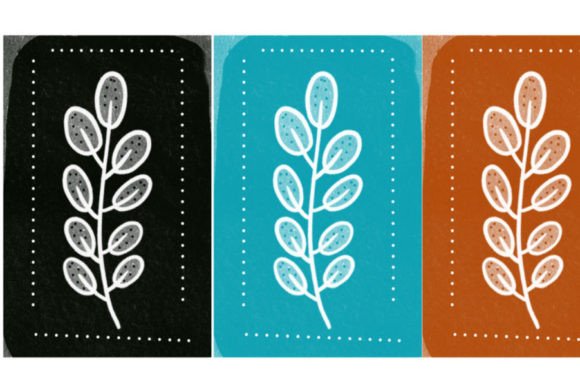
The Winter Blossom set consists of 14 individual stamp brushes, each meticulously hand-drawn within the Procreate environment. These assets are designed to be versatile, enabling users to mix, match, scale, resize, and adjust color and opacity to fit specific design requirements. However, integrating such tools effectively requires more than just downloading a file; it demands an understanding of compatibility, preparation, and practical application within your existing digital ecosystem.
Understanding Compatibility and Technical Requirements
Before incorporating any new asset into your workflow, it is essential to verify technical compatibility. The Procreate Brush Stamp Winter Blossom is engineered specifically for the iPad ecosystem. To utilize these brushes effectively, you must have an iPad Pro, an Apple Pencil, or a compatible pressure-sensitive stylus, along with the Procreate app installed. It is crucial to note that these brushes do not work in Adobe Photoshop, Clip Studio Paint, or any other desktop-based illustration software. Attempting to use them outside of the Procreate environment will result in incompatibility errors.
This specificity is not a limitation but a feature of the tool’s design. By optimizing the brushes for Procreate’s native engine, the creator ensures that the pressure sensitivity, texture, and responsiveness align perfectly with the iPad’s hardware capabilities. For professionals who operate across multiple platforms, this means planning your workflow accordingly. If your final output requires vector files or Photoshop layers, you must account for the export process from Procreate as a distinct phase in your project timeline.
Preparation and Installation Process
Efficient implementation begins with proper file management. Upon purchase, you will receive a single ZIP file containing the Winter_Blossom_.brushset. The installation process is straightforward but requires attention to detail to ensure the brushes appear correctly in your library.
First, download the ZIP file to a designated folder on your iPad. Many users find it helpful to create a specific "Design Assets" folder within their Files app to keep resources organized. Once downloaded, locate the file and tap to unzip it if your iPad does not do so automatically. You should see the .brushset file ready for import.
To install the brushes:
- Open the folder containing the downloaded Winter_Blossom_.brushset file.
- Tap and hold the file with your finger or Apple Pencil to bring up the context menu.
- Select “Share” from the options provided.
- If “Open in Procreate” is immediately visible, select it. If not, click on “More” to reveal additional apps.
- Scroll through the list, find “Open in Procreate,” and tap it.
- Procreate will launch automatically, and the brush set will import into your library.
Once imported, open any project in Procreate. Click on the brush icon at the top right corner to access your brush library. You will find the new Winter Blossom set listed among your collections. It is advisable to test the brushes on a separate layer to familiarize yourself with their default settings before applying them to critical design elements.
Strategic Application in Creative Workflows
The true value of the Procreate Brush Stamp Winter Blossom lies in its flexibility during the creative process. These 14 stamps are not static images; they are dynamic tools that can be manipulated to suit various design contexts. Here is how they can be integrated into different stages of a project:
Conceptualization and Mood Boarding
In the early stages of a project, speed is essential. When creating mood boards or initial concept sketches for clients, using pre-made stamps can help visualize themes quickly. The Winter Blossom stamps, with their organic, hand-drawn feel, are ideal for projects requiring a soft, natural, or seasonal aesthetic. By dragging and dropping these stamps onto your canvas, you can rapidly iterate on composition ideas without spending hours drawing individual elements from scratch.
Enhancing Social Media and Marketing Assets
For marketers and small business owners, consistency in branding is key. These stamps can be used to create cohesive visual identities for social media posts, email headers, or digital advertisements. By adjusting the opacity and color of the stamps, you can align them with your brand’s palette. For instance, reducing the opacity of a blossom stamp can create a subtle watermark effect, adding depth to a promotional graphic without overpowering the main message.
Product Design and Packaging
Entrepreneurs developing physical products, such as stationery, textiles, or packaging, can use these stamps to create repeat patterns or accent designs. Since the brushes can be scaled and resized without losing quality, they are suitable for both large-format prints and small details. The ability to mix and match the 14 individual stamps allows for endless variation, ensuring that your designs remain unique and engaging.
Customization and Quality Control
One of the standout features of the Procreate Brush Stamp Winter Blossom is the level of customization available. Each stamp can be adjusted for size, rotation, color, and opacity. This flexibility allows for precise control over the final output. However, with great flexibility comes the responsibility of maintaining quality control.
When scaling stamps, be mindful of resolution. While Procreate handles vector-like scaling well for brushes, extreme enlargement may reveal pixelation depending on your canvas DPI settings. Always ensure your canvas is set to a high resolution (300 DPI or higher) if the final output is intended for print. Additionally, when changing colors, use Procreate’s color harmony tools to ensure the blossoms complement the rest of your design rather than clashing with it.
Opacity adjustments are particularly useful for creating depth. By layering multiple stamps with varying opacities, you can simulate a sense of distance and atmosphere. This technique is especially effective in background designs, where you want the blossoms to suggest a theme without distracting from foreground content.
Long-Term Integration and Organization
To maximize the long-term utility of the Winter Blossom brushes, consider organizing them within your Procreate library. Create a dedicated group for seasonal or thematic brushes, making it easier to locate them during future projects. Regularly update your asset library by removing unused brushes and archiving completed projects that utilized these stamps. This practice not only keeps your workspace clean but also enhances your overall productivity.
Furthermore, document your successful uses of these stamps. Keep a swipe file or a reference folder of designs where the Procreate Brush Stamp Winter Blossom was effectively employed. This reference material can serve as inspiration for future projects and help you refine your approach to using stamp brushes in your workflow.
Conclusion
The Procreate Brush Stamp Winter Blossom is more than a collection of digital images; it is a tool for enhancing efficiency and creativity in your design process. By understanding its technical requirements, mastering the installation process, and strategically applying the stamps in your workflows, you can elevate the quality and speed of your creative output. Whether you are a professional designer, a marketer, or a hobbyist, integrating these brushes into your routine offers a practical way to achieve polished, hand-drawn results with minimal effort. Remember, the key to success lies not just in having the right tools, but in knowing how to use them effectively within your unique creative ecosystem.